As much for my reference as anyone else’s:
sudo -u gdm gconftool-2 --type=bool --set /desktop/gnome/sound/event_sounds false

As much for my reference as anyone else’s:
sudo -u gdm gconftool-2 --type=bool --set /desktop/gnome/sound/event_sounds false
My Dell E4300 has an Intel 5100 wifi card and the led blinks constantly. I still don’t understand how Intel can consider blinking the wifi LED during data transfer to be a sensible default. For most people it blinks non-stop which is both uninformative and irritating.
Fortunately blogger Alex Cabal found a solution for Karmic, and his updated solution also works for Natty/11.04. It describes opening a text editor and pasting a couple of lines, however I’m much lazier so here’s the one-line version:
echo 'options iwlcore led_mode=1' >> /etc/modprobe.d/wlan.conf
Of course, the command above must be run as root (sudo -i), for some reason sudo gave me access denied. You also need to reboot… or you could just unload and reload the module:
modprobe -r iwlagn && modprobe iwlagn
The double ampersand just executes the next command if the previous one succeeded (exit status 0).
As of Ubuntu 11.10 (kernel 3.0.0) the option has to be applied to the iwlagn module, options for iwlcore are ignored. Thus the full solution now becomes:
sudo -i
echo 'options iwlagn led_mode=1' >> /etc/modprobe.d/wlan.conf
modprobe -r iwlagn && modprobe iwlagn
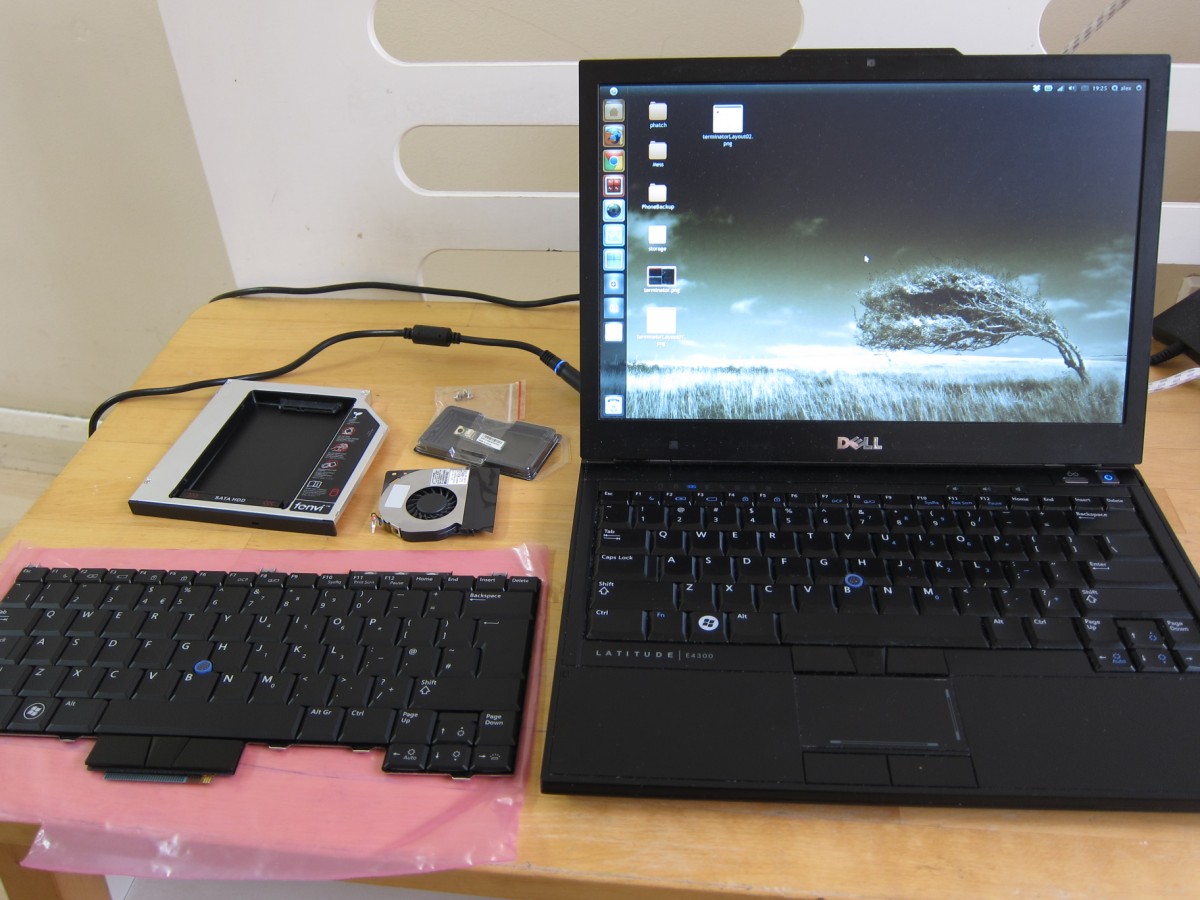
Two years is quite a long time for me to keep a computer, but this Dell has lasted surprisingly well. It lags a bit in the 3D graphics department, but CPU wise it’s still perfectly acceptable and 4gb of ram is still a decent amount. And the 13″ form factor is perfect for my needs.
One of the major advantages of business models is the long product life cycle, which means an ample supply of spare parts and accessories. In the case of the Dell E series the docking stations and some of the other accessories are compatible with all other E series laptops. The greater amount of resources that go into the design and the higher build quality are also apparent – once you’ve had a good business laptop it’s hard to go back to disposable consumer machines!
Recently I’ve had a few gripes with it however:
When the fan finally outright stalled I was able to get it to move again after a rest, but I decided it was time to kill 3 pigs with 1 bird and give the old girl a new lease of life.
I picked up the following parts on ebay: Continue reading
I recently upgraded the keyboard in my Dell E4300 from a standard USA model to a backlit UK model. All went great however I noticed that the keyboard layout kept switching back to the USA layout. It seemed to happen after every reboot, and also randomly in the middle of the session.
There’s even a bug in launchpad about it which I commented on: https://bugs.launchpad.net/ubuntu/+bug/762111
There were two factors causing the layout to switch and the USA layout to be reinstated.
Firstly when logging in the session was set to the USA layout. To fix this logout, select your user name and then look for the keyboard symbol down the bottom of the screen.
The second feature causing seemingly random switches during sessions was the “Separate layout for each window” option in Keyboard Preferences (Keyboard Preferences is in system settings and the option is on the layout tab).
If you deactivate this, remove the USA layout, apply system wide and make sure the GDM session is set to the correct layout on login you shouldn’t have any more problems with randomly switching keyboard layouts!