
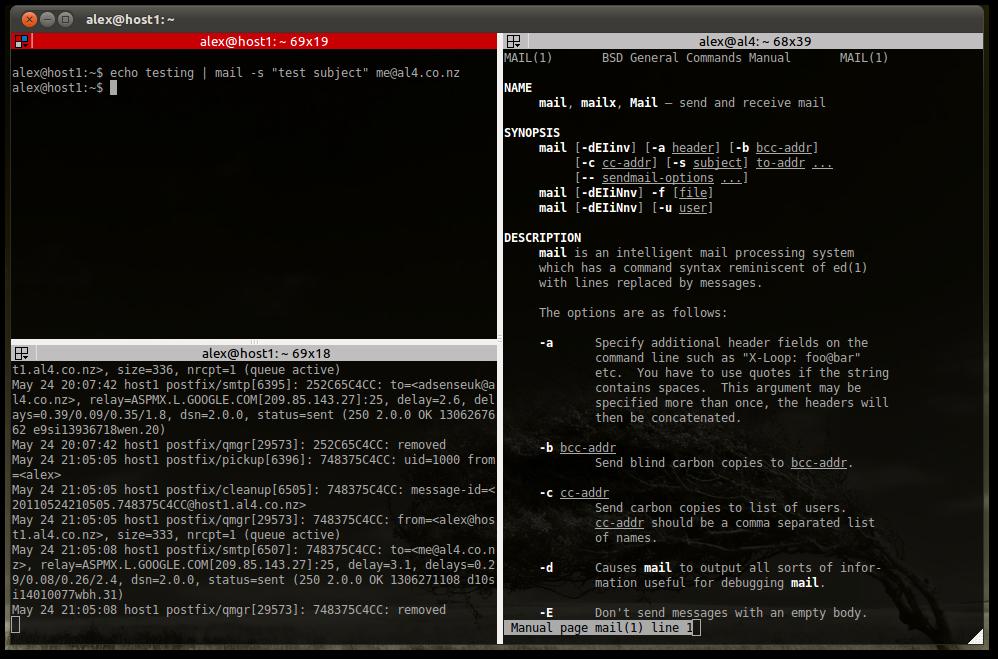
Terminator in action
Terminator is a must-have tool for Linux administrators. It’s a terminal emulator that supports multiple terminals via tabs, but also by dividing up its window with horizontal and vertical splits.
The user documentation is a bit sparse, in fact what you see in the man page is what you get. In this post I’ll take you through the features that I think make Terminator the best terminal emulator around.
Split panes
This is terminator’s killer feature. Having multiple terminals in one window allows you to have a lot of information on screen and quickly switch between different sessions. E.g. you could be tailing a log in one window while performing actions in another. Or open the man page for a command you’re constructing. Or monitor 10 servers at once. The possibilities are endless.
The simplest way to split the pane is to right-click and select split horizontally or vertically, but it is much more efficient to use the keyboard shortcut keys:
- Ctrl+Shift+E – vErtical split
- Ctrl+Shift+O – hOrizontal split
- Alt+ArrowKeys – Navigate terminals
Grouping Terminals
Grouping terminals allows you to perform the same keystrokes on multiple servers at the same time. If terminator has a no.2 feature, this is it. Obviously this can be dangerous and is no substitute for scripting and configuration management, but there are cases where it can be very useful indeed.
The simplest way to group is to click the menu on the top left of a terminal, create a new group and then add other terminals to it like so:
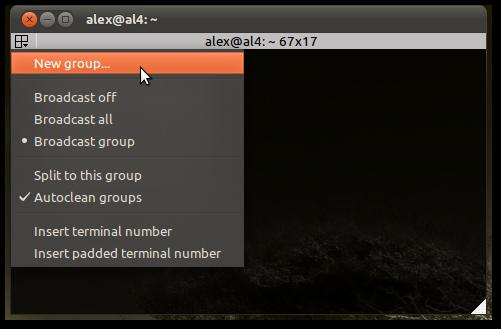
Select new group
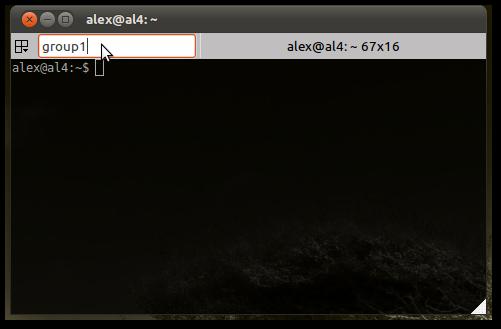
Enter a name
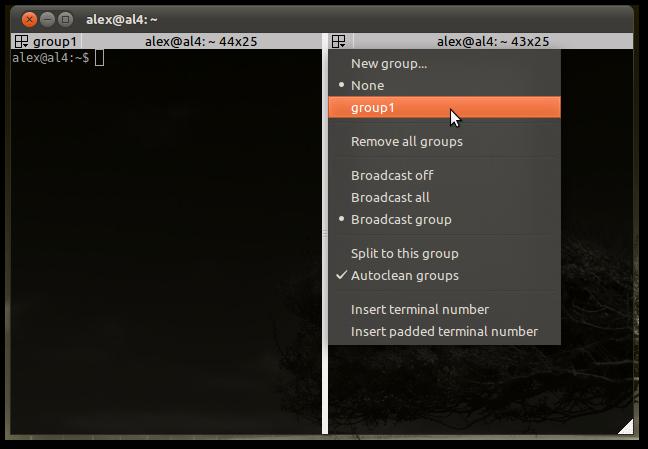
Add other terminals to your group
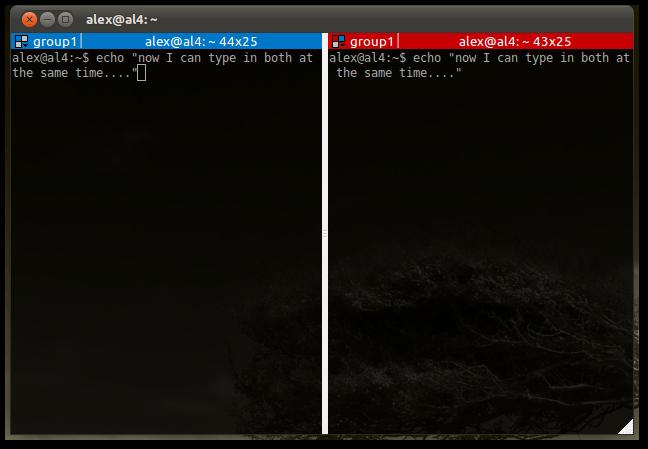
Typing in two terminals at once
Shortcut keys:
- Super+G – Group All
- Super+Shift+G – Ungroup All
- Super+T – Group Tab
- Super+Shift+T – Ungroup Tab
Be careful when grouping all as it groups all terminals owned by the process, including other windows that may not be visible (except those belonging to another instance). For this reason, I make a habit of only ever using Super+T or grouping manually, which groups only the current tab. That way I can be sure that I can always see what is happening.
Layouts
Split panes are great but it is a pain having to manually create the desired layout by splitting the terminal window every time you start the program. Fortunately terminator can store layouts.
After setting up your terminals how you want them, right click anywhere, select preferences, then go to the layouts tab. From here click “Add”, and a layout will be created with your current settings:
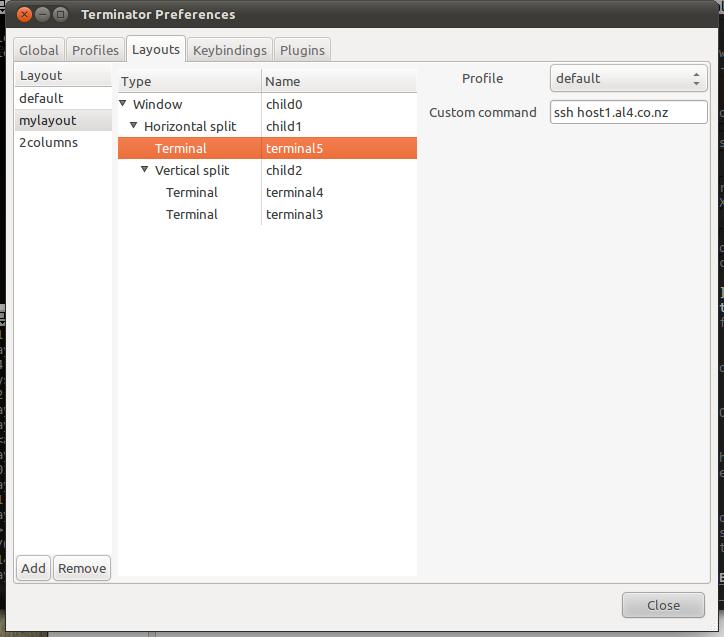
Creating a layout
You can also enter a command that will be executed when the terminal launches – I use this to open ssh sessions to servers (this is most effective if you have authorized your private key).
Once you’ve saved a layout it’s not immediately obvious how to open it, but basically you have to launch a new instance of terminator with the “-l mylayout” option. It can be useful to create a shortcut which you can then add to a toolbar or launcher:

Creating a launcher
The other options I’ve used are:
-m– maximize-b– borderless – works well with Gnome2 but is a bit redundant with Unity as a maximised window is borderless anyway-T– sets the title
Profiles
Profiles are also a very useful feature but I’m sure you can figure this one out yourself. An example of how you might use profiles is creating a profile for live servers and changing the background to red so you know you’re working on a live box. Under the layouts tab assign this profile to the terminal that ssh’s into your server and you’ll never type in the wrong terminal again. As long as you don’t use grouping that is…
I also changed the default profile to not display scrollbars – I prefer to use Shift+PageUp/PageDown so they were basically useless clutter.
That’s it
Once you get used to terminator you’ll wonder how you ever lived without it.
Thx!
Thanks for the layouts explanation, I needed it badly.
You’re welcome :-)
would you know how to cycle trough the profile witha keyboard shortcut ? I know I can right click and change profile, but for example I setup vim to change background color with and I would love to do something similar with terminator (yes I am using solarized for vim colorscheme as well as terminator)
Nope, doesn’t look like you can. The developer seems open to feature requests, you might want to try submitting a wishlist bug. https://bugs.launchpad.net/terminator
Do you know if there’s a keyboard shortcut for “broadcast group” or “broadcast all”? Also, appreciate the guide. Come across it several times in the last few months when trying to enhance my terminator use :)
You’re welcome. I’m pretty sure there isn’t a shortcut key for broadcast, at least I can’t find one. Let me know if you do!
As Henrik below said, turns out there’s an option for it under Preferences > Keybindings. Interesting to note that this actually doesn’t work through the gui, but I got what I wanted by doing:
nano /home/mattr/.config/terminator/config
[keybindings]
broadcast_all = b
split_horiz = o
broadcast_off = o
If you edited it in the gui, you need to change it from “Primary” to “Ctrl”. Not sure why it did it.
Thanks,
Matt
Looks like wordpress didn’t like the syntax. Figured out my what I needed from the this post: https://bugs.launchpad.net/terminator/+bug/993720
Keyboard shortcut for Broadcast-all is Alt+a, and Broadcast-off is Alt+o.
Awesome post thanks, especially the info on layouts they make Terminator incredibly useful.
Look under ‘keybindings’
http://linux.die.net/man/5/terminator_config
Thanks! just what I needed to look at.
I hadn’t understood what groups were for. Very handy.
Thanks!
I wonder why there is no easy way to modify a layout. The way I understand it you have to re-add the modified layout and put in all the commands again.
awesome post , i was searching for such a post past few days :) thanks alot
You’re welcome :)
Danke dir! :)
Hey nice post, I was looking for something to broadcast command to all terminal. Thanks..!! :)
Very helpful, especially the part about layouts. That saves me several minutes every morning. Thanks.
Pingback: Introduce how to make the environment for input the commands at the same time | IT水電工-哆啦胖虎