Tag Archives: linux - Page 2

An Ubuntu 10.04 Home Server

I’ve recently been setting up a home server for my parents using lucid. While it’s not quite a point and click setup process, the process is a lot more streamlined than it used to be.

They have an individual computer each running Windows 7 and, one laptop between them running XP. Mum is also a photographer and generates a large amount of data. Dad also generates a fair bit of data, less than Mum although he does do the occasional home video.

Backups are an ad-hoc affair. Mum has three hard disks in her computer which she manually copies files between and tries to ensure she has two copies of everything. Dad has a portable external drive which he backs up to infrequently. Between them, neither is confident that they’d get all their data back in the event of a disaster.

Dad also liked how my HTPC (running XBMC) worked, and decided one of those would be nice too. So I decided to setup a home server for them and solve all their computer problems. Well, almost.

I started writing this as a single article, but it got a bit long so I’ve decided to break it up into a series. This first post is an overview, the links to the other posts are at the bottom of this article.

I’m assuming a fairly good degree of technical knowledge here, but if there are any gaps you feel I should add please feel free to leave a comment. I am aiming this at a reader who is familiar with Linux and Ubuntu, has installed software with apt-get or Synaptic, is comfortable with using the command line, and understands the implications of using raid5.

Overview

This home server will perform the following tasks:

  • Play music and video via the TV
  • Present a file share to the network, with individual folders for Mum and Dad
  • Backup the contents of their folders nightly to an external hard drive
  • Provide a GUI-based remote administration interface
  • Monitor backups and the raid array, sending emails to both Mum and Dad if something is amiss

Software that needs to be configured to perform these tasks:

  • MDADM for RAID
  • Xbox Media Center (XBMC) for media playback
  • Samba for file sharing
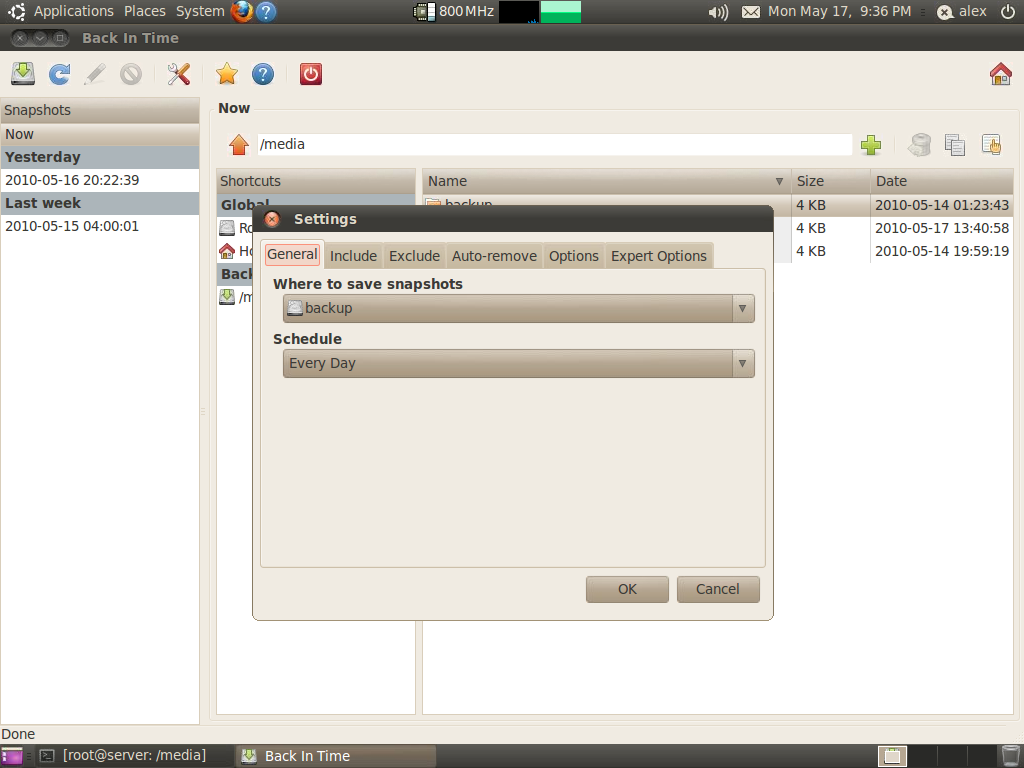
  • Back in Time for backup
  • NeatX for remote administration

The main boot device in this case will be an IDE compact flash card. I did this partly because it makes recovery easier (just write an image to a flash card rather than a whole hard drive), but mainly because it frees up a SATA port!

The hardware components for this particular HTPC are:

  • Gigabyte M85M-US2H motherboard
  • AMD Athlon II 250
  • 2gb DDR2 ram
  • 4x640gb Western Digital 6400AAKS hard drives
  • 1x1TB Western Digital Green
  • 1x2TB Western Digital Green (in external esata case)
  • 4 Raidon/Stardom hotswap drive bays
  • IDE Compact Flash adaptor and 8gb 133x CF card

A note on raid

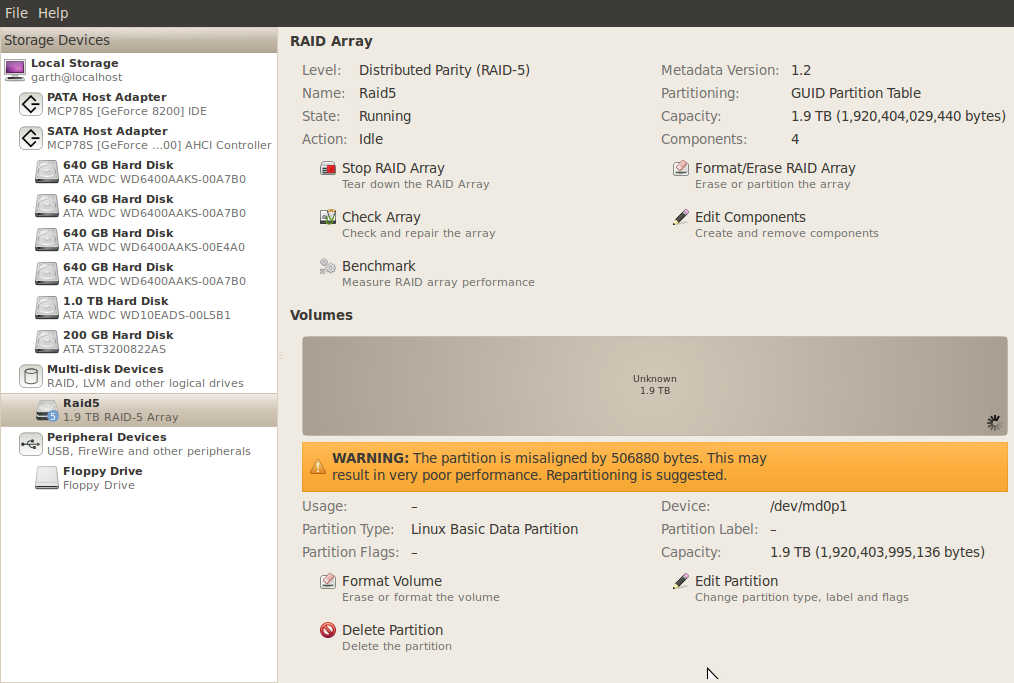
The 4x640gb drives are configured in a raid 5 array. Personally, this is about as large an array as I would trust Raid5 to, the future is redundancy at the file system layer, as ZFS and Btrfs are capable of. ZFS can’t be used in the Linux kernel and Btrfs isn’t even close to production-ready yet, so for now I believe Raid is still the most sensible option. But if you’re reading this in 2012, you should probably be using Btrfs instead.

Storage

The 1TB hdd is just a single disk for media to be played back on the TV. Anything here is considered replaceable (think of it like the internal HDD in a MySky or TiVO box), so it won’t be backed up at all.

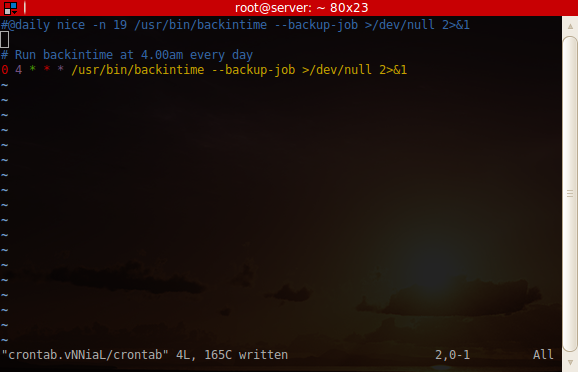
The 2TB hdd is the backup drive. Each night the entire raid array is backed up to it with Back in Time, configured to take snapshots. Since it uses rsync, the backups are incremental and shouldn’t take more than a few minutes to run, depending on how much was changed during the day. Obviously as the array nears capacity fewer snapshots will be able to be kept, and once it does the idea is to replace the 2TB backup hdd with a new one, keep the old one as an archive, delete any data from the raid array that is no longer current, and start again with a fresh clean backup disk. Hopefully by then it will be a 3 or 4TB disk and they can keep more snapshots!

The file system on the backup HDD will be NTFS. This is because it supports hard links and is readable by the Windows machines, which is important for my parents when they go to retrieve files from the archive.

Final notes before we get to the nitty gritty

I had a bit of trouble getting the drive bays lined up with the ports that the OS reported they were attached to. This is important because if mdadm tells Dad that the sata disk on port x has failed, I need him to be able to know that it’s the disk in bay x. Unfortunately on the motherboard I used, Ubuntu assigns them like so:

0 – 1
1 – 3
2 – 2
3 – 4

(motherboard port – ubuntu port)

So while your motherboard may be better designed than mine, don’t assume they are in the same order. The links to the follow-up articles are below:

Changing compiz animations for specific windows in Linux

I use the terminal program Guake on my Ubuntu 9.10 laptop, which is really handy for quick access to a terminal window (I changed the shortcut key from F12 to Alt+~ though, which makes more sense to me as it’s more like Quake :-) ).

With Desktop Effects enabled though, the default animation doesn’t quite look right. So to change it I needed to figure how to change the animation for a specific window. Fortunately the process is reasonably simple.

First you need desktop effects enabled, and the CompizConfig Settings Manager (CCSM) installed:
sudo aptitude install compizconfig-settings-manager

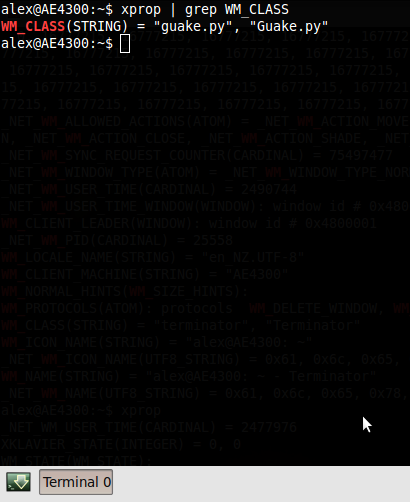
Next, you need to know the “class” of the window you want to change (which to confuse matters is interpreted as the “name” in compizconfig). To get the class/name, enter the following command in a terminal:
xprop | grep WM_CLASS

The cursor should change to a cross, at which point you need to click on the window. You should get something like this:
Getting the window class with xprop

Next, open CCSM by going to System > Preferences > CompizConfig Settings Manager. Click on Animations.

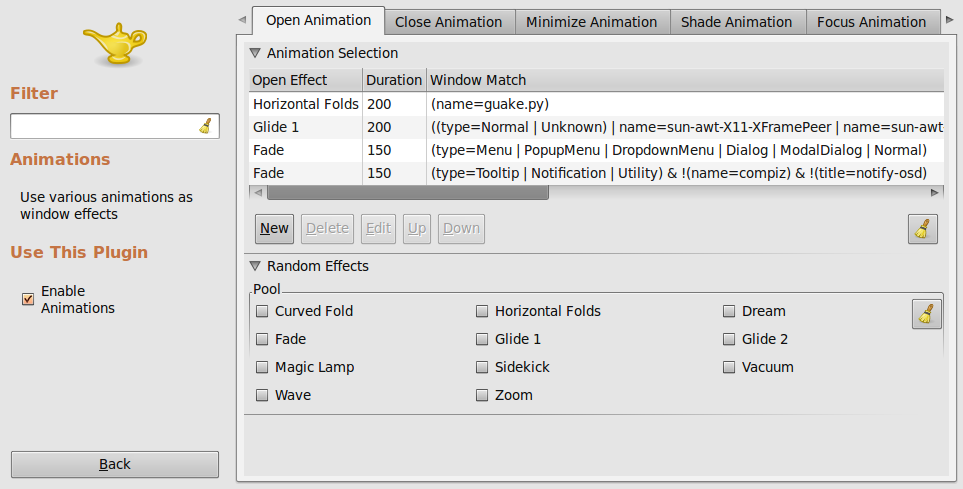
To add a rule for the window you want to customise, click New, choose the effect and duration (200 is a good number). Under “Window Match”, enter the following:
(name=[WM_CLASS])
Where “[WM_CLASS]” is the first field from the xprop output gathered earlier (“guake.py” in my case). CCSM seems to only match the first value for WM_CLASS, as “Guake.py” didn’t work. Refer to the screenshot below for an example.

Screenshot-CompizConfig Settings Manager

Finally, you need to make sure that this rule is at the top so that it matches before any other rules. Simply highlight your new rule and click the up button a few times.

Printing dd stats / status

I keep Googling this, when really I should have committed it to memory by now. It’s extremely useful when cloning hard drives, which takes a long time with modern disks (a 160gb hard drive takes about an hour over eSATA @ ~50MB/s).

Anyway while there are more efficient methods, dd is simple and it works.

So given the following dd command:

dd if=/dev/sda of=/dev/sdb bs=32M

We can find out the pid (process ID) with the following command:

ps ax | grep dd

Which in my case gives:

12147  tty2    R+     6:17 dd if /dev/sda of /dev/sdb bs 32M

i.e. 12147.

To get dd to output the stats, we send it a SIGUSR1 signal:

kill -SIGUSR1 12147

Resulting in:

3205+0 records in
3204+0 records out
107508400128 bytes (108 GB) copied, 2111.05 s, 50.9 MB/s

I should thank the author of the following link, it’s the result I get whenever I google this:

http://prefetch.net/blog/index.php/2006/06/11/printing-dd-status/

Raw photo processing on Linux

Being a Linux user, one of my concerns with shooting raw was what to do with the files once I’d captured them. On Windows I’d probably just use Canon’s software that was supplied with my 40D – Zoombrowser and Digital Photo Professional.

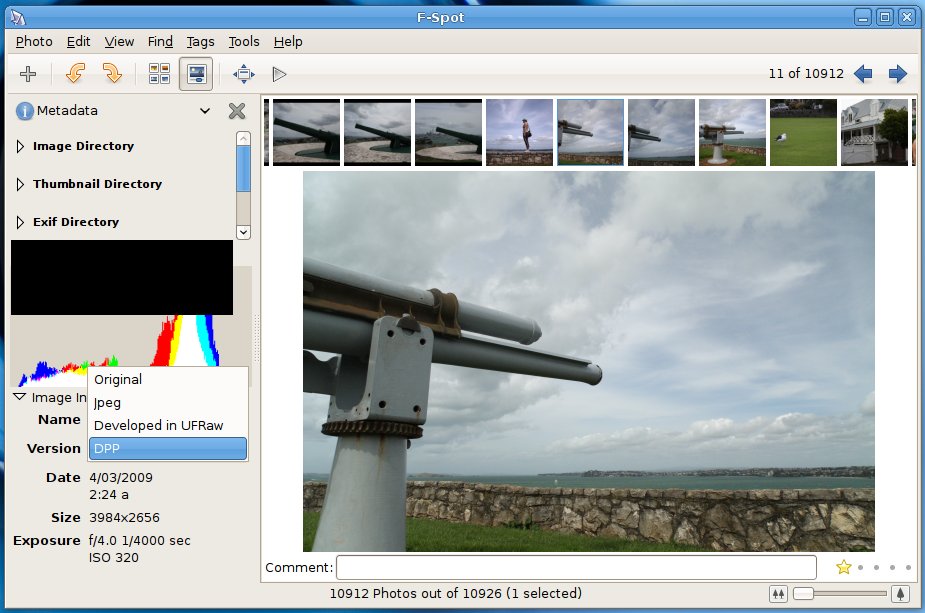
However the default photo mangement application in Ubuntu, F-Spot, pleasantly surprised me in the way it handles raw files. Not only does it understand and preview them, it can manage raw .cr2 files, developed jpegs and camera jpegs as one image, meaning that you can preserve all versions of a picture without cluttering up your library with multiple versions. For me this is almost an essential feature now, as I frequently have three, sometimes four versions of the same image – raw, camera jpeg, developed jpeg, cropped, etc.

So here’s my brief outline of the components I use for managing photos:

  1. F-Spot, installed by default in Ubuntu and also many other distros such as OpenSUSE
  2. UFRaw standalone
  3. F-Spot DevelopInUFRaw plugin
  4. F-Spot RawPlusJpeg plugin
  5. Canon Digital Photo Professional

UFRaw is an excellent raw processing tool, based on dcraw, and supports many other raw formats (not just Canons). Ubuntu provides a standalone version and a GIMP integrated version, but the one we want is just called ufraw. To install it, open a terminal and type:

sudo aptitude install ufraw

You will need to have the universe repository enabled to install this package, to enable it go to software sources and tick the appropriate box.

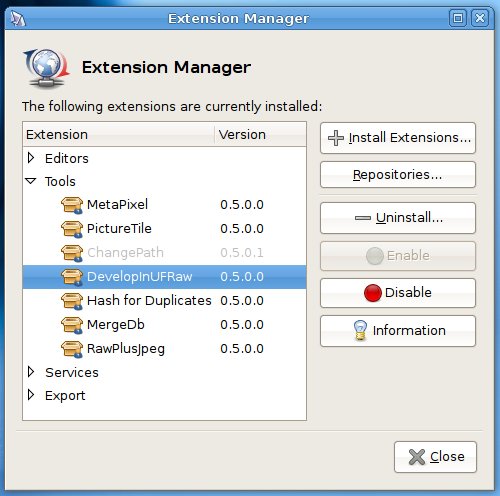
The F-Spot plugins are simple to install and can be added from within F-Spot itself – just go to Edit > Manage Extensions, enable them if present and install them first if not:

F-Spot Extension Manager

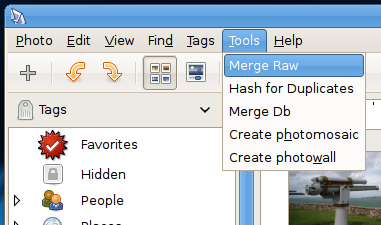
Once you’ve installed everything, the first thing I recommend doing is merging your raw files:

Merging Raw Files

With the UFRaw plugin installed you should also be able to right-click on any image and select “Develop in UFRaw”, but obviously it will only work if the picture you’ve selected actually has a raw file. Any developed files appear as a version rather than a new image like so:

FSpot Versions

The main down side to using UFRaw as opposed to Canon’s Digital Photo Professional, is the lack of lens aberration correction. This may not be a problem for you if you only shoot L glass, but for the rest of us with consumer zooms the lens correction is a nice feature to have. I also find that it’s easier to achieve better results with DPP, it’s not that UFRaw can’t make the adjustments, but DPP does seem to make more intelligent guesses and I find I can achieve a good result faster than with UFRaw.

Fortunately, Digital Photo Professional works fairly well in Wine. To install it on Ubuntu 8.10 simply pop in the CD, and open the setup.exe file with wine (right click, Open with “Wine Windows Program Loader”). I’d suggest deselecting all drivers and anything unnecessary, I installed DPP only).

F-Spot and UFRaw make a pretty powerful photographic toolset, and with DPP running in Wine there’s little need for Windows. If you don’t like F-Spot there’s Google’s Picasa (which is actually a Wine app on Linux…), and DigiKam which is the KDE equivalent.

Edubuntu for Vanuatu

Over the past few days I’ve been setting up a few old computers to send to a school in Vanuatu. They’re fairly modest machines but still perfectly usable (albeit not with Vista); P4 1.6ghz, 256mb ram, 40gb hdd. They even have nvidia vanta graphics cards (which sadly can’t do OpenGL – it would have been nice to load Stellarium on the machines). They also have brand new 17 inch LCD monitors, as the bulky CRT monitors that they had originally can’t be taken over as luggage on the plane.

The computers are going accross with students as part of a cultural exchange trip, which allows the students to experience life in Vanuatu. The school they are visiting has virtually no IT expertise – when our english teacher sets them up he will be the closest thing they have to a systems administrator!

This makes is more important for things to just work, but there are also other challenges. We could just roll back the machines to the Microsoft operating system they are licensed for (Windows 2000), install a few Open Source applications such as Open Office & Firefox, and send them on their way. However a computer setup in this way doesn’t even begin to realise the potential of computers as tools for teaching and learning.

In the end it was a pretty easy decision to install Edubuntu on them. Edubuntu comes with all the usual productivity tools (the base Ubuntu system), plus a whole lot of “edutainment” packages (games), and also some specific tools to aid the teaching of specific subjects. You don’t get an equivalent setup on Windows 2000 without a lot more effort or a lot of money. Windows 2000 is now 8 years old, and well past its use-by date anyway.

The timing actually turns out to be quite bad however, as Edubuntu 7.10 is now 6 months old, and the LTS version 8.04 is about to be released. But I would rather send over a fully patched Gutsy system than a beta Hardy system, so that is what they’re getting.

The school also asked if we had an old library cataloguing system that they could use, as their one has “crashed”. Unfortunately I only heard about this yesterday, otherwise I could have set up koha on another machine. Koha is an open source intergrated library system that was originally developed by a New Zealand company. There may yet be time to do this, but I have never even looked at it before so it would be a bit of a rush job.

OpenSUSE 10.3 first impressions

This was been a much anticipated release for me as the improvements that have been made since 10.2 have been well published. I installed the x64 DVD version today, so has it lived up to the hype? Mostly.

  • Package management has improved a lot, but it’s still no apt
  • The included desktop effects are ho-hum (similar to Ubuntu Fiesty), and it uses XGL even if you have AIGLX available (in short, skip it and install Fusion)
  • Bootup is way faster
  • One click install actually works now and doesn’t require Konqueror (although the Compiz Fusion install wasn’t exactly smooth – details to follow in a future post)

Now I just need a Novell client for 10.3 (will try installing the 10.2 version but I’m not hopeful), and a 64-bit version of ConsoleOne (yes there is one but it’s dependent on some 32-bit java classes!).